Plug in the Windows drive. And just save.
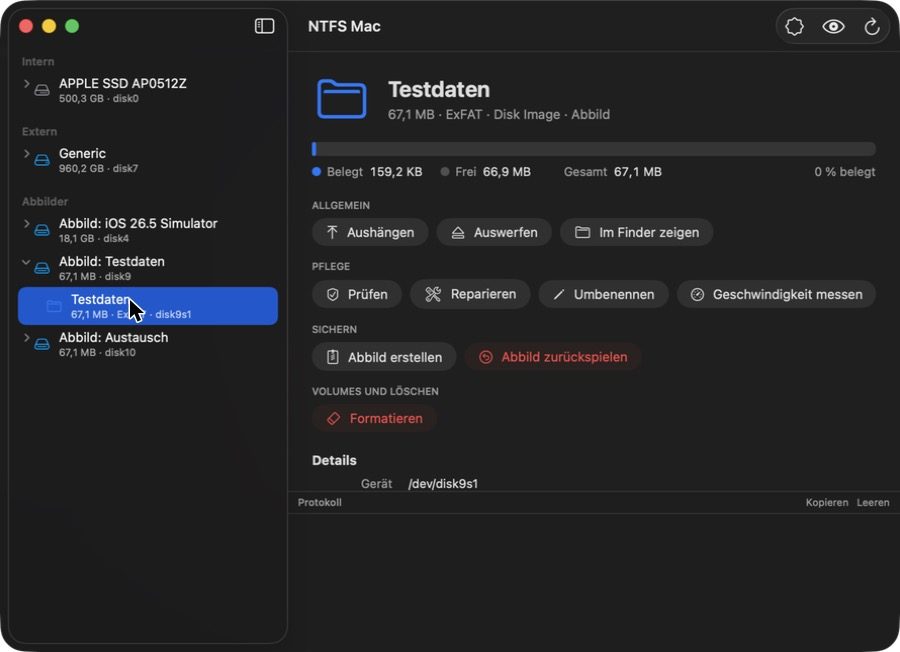
NTFS Mac shows every drive with its usage and partitions. Drives from a Windows PC are readable straight away and writable once two free add-ons are installed.
€19 one-time · final price
No subscription · 12 months of updates included · 30-day money-back
NTFS Mac
How NTFS Mac works
NTFS Mac
What changes for you
Sharing with Windows just works
NTFS volumes are always readable. With the add-ons, NTFS Mac mounts them with write access and can even format a drive as NTFS.
Find what eats your space
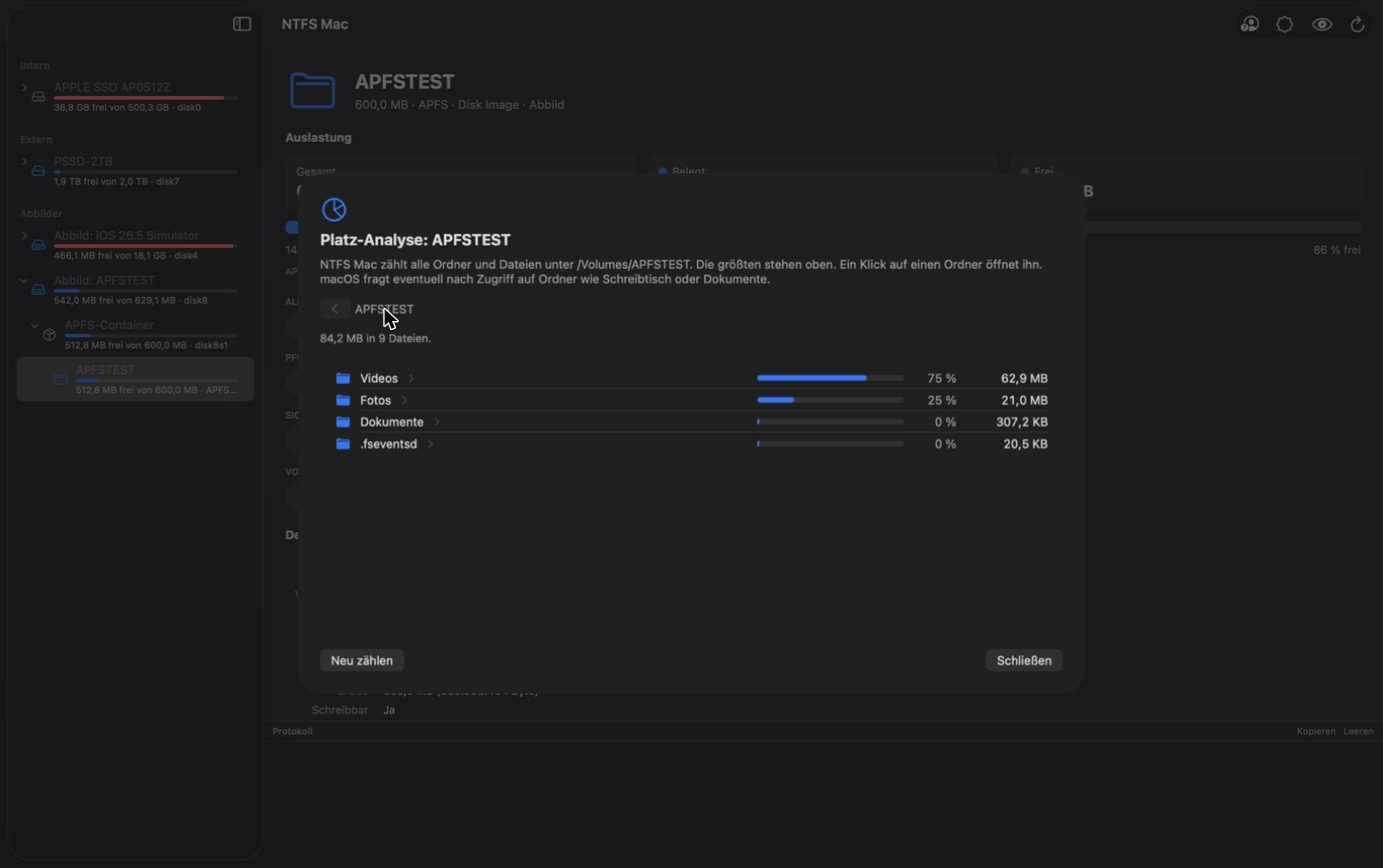
The space analysis counts every folder and sorts by size. Click your way down to the file that fills your storage.
More than the built-in tool
Create and resize partitions, make and restore disk images, measure speed. All in one window, with a live log.
No wrong click
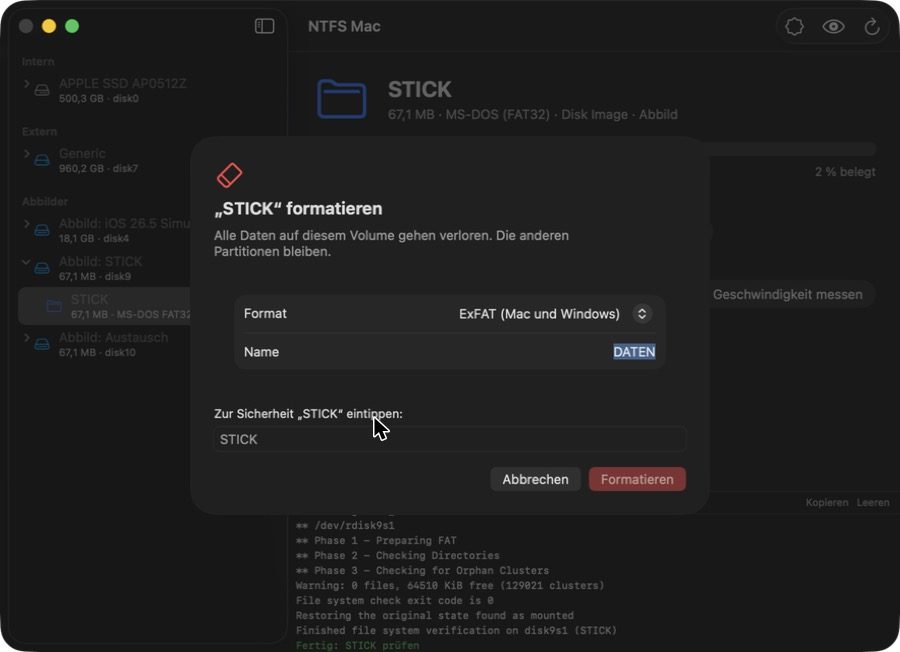
The internal system drive is locked. Anything that erases data is red and only starts once you type the exact name of the drive.
Know what is running
Progress in per cent, the time left and a button to cancel. The log shows every command and every reply.
Copy files one to one
Copy a whole volume into a dated folder. If the copy stops, NTFS Mac resumes later and skips what is already there.
This is how easy it is
- Connect the drive. It appears on the left under External.
- Click it: usage, partitions and every allowed action are shown on the right.
- For NTFS, set up the add-ons once, then choose to mount with write access.
Everything included
- Drives grouped into internal, external and disk images, with usage bars
- Mount, unmount, eject, show in Finder
- Format as APFS, Mac OS Extended, ExFAT, FAT32 or NTFS
- Erase a whole drive with GPT or MBR scheme
- Create, resize and delete partitions
- Add and delete APFS volumes
- Verify and repair, SMART status in plain words
- Create and restore disk images (.dmg)
- Measure write and read speed
- Space analysis for every volume and for your home folder
NTFS Mac
All features at a glance
Everything NTFS Mac can do, sorted by topic.
See every drive
- Sidebar split into Internal, External and Disk images, expandable down to partitions and APFS volumes
- Every row has a slim bar (blue, orange above 75 %, red above 90 %) plus the free and total space
- NTFS volumes carry a badge: "NTFS" means read-only, "NTFS rw" means writable
- Drives you plug in or pull out appear and vanish on their own, no restart needed
- Detail grid with device, identifier, file system, connection, exact size in bytes, UUID and block size
- SMART health in plain language, with a clear warning to back up when a drive is failing
- Show or hide system parts such as EFI, Preboot and VM with
⇧⌘Y - Read in all drives again with
⌘R - After unmounting or deleting, the selection stays on the same drive and never jumps to a different one
- Eject always hits the physical drive, even if an APFS volume is selected
Usage and space analysis
- Tiles for total, used and free, and for APFS also the share of the selected volume
- Stacked bar with one colour per volume or partition, plus a list with size and percentage
- System parts get readable names, such as your data and apps, swap and sleep image, or recovery
- Click a row in that list to jump straight to the volume
- Partition map draws partitions and free gaps in their real order and true proportions
- The space analysis counts in the background and shows files and size as it goes
- Folders sorted by size, each with a bar and its share of the current folder
- Breadcrumb path to step back, plus an arrow to go one level up
- Right-click a row to reveal the file or folder in Finder
- Tells you about folders it could not read and about incomplete numbers after a cancel
- Toolbar button that scans your own home folder in one click
Read and write NTFS
- NTFS drives can always be read, even with no add-ons at all
- A coloured strip tells you at once: orange for read-only, green for write access
- One button unmounts the volume and mounts it again with ntfs-3g, this time writable
- Setup guide checks macFUSE, ntfs-3g and mkntfs and marks each one green or grey
- The Terminal command is ready to copy:
brew install gromgit/fuse/ntfs-3g-mac - Looks for the tools in Homebrew (Apple silicon and Intel) and MacPorts, with a rescan after installing
- Seal icon in the toolbar shows the NTFS state, and the Help menu opens the setup guide
- Format a volume as NTFS (quick format with mkntfs), name up to 32 characters
Format, rename, erase
- ExFAT comes preselected because Mac and Windows both read and write it out of the box
- FAT32 is labelled with its limit of 4 GB per file
- Name check per format: FAT32 up to 11 characters, ExFAT up to 15, APFS and Mac OS Extended up to 255
- For FAT32 the window shows beforehand that the name will be stored in capitals
- The scheme follows the format: MBR for FAT32, GPT for everything else
- Set up a whole drive from scratch with format, scheme and name in one window
- Rename with a check that the new name suits the file system
- An APFS container cannot be formatted in one go, so its volumes do not all disappear at once
Partitions and APFS volumes
- New partition in the largest free gap, using all of it or a size you enter in GB
- At least 100 MB, at most the size of the free gap
- Grow or shrink APFS and Mac OS Extended partitions while the data stays in place
- The resize window shows current, smallest and largest size, with slider and field in step to the MB
- Deleting a partition frees its space, with an extra warning for an APFS container
- The EFI boot partition is left alone
- Greyed-out partition buttons explain why and what to do, for example MBR instead of GPT or shrink first
- Add an APFS volume to an existing container and remove it again
Backups and disk images
- Copy files one to one into a new folder named with date and time
- Resume an interrupted backup: only missing or changed files are copied
- Checks first that the target has enough room and does not sit on the source
- Keeps permissions, extended attributes and creation and modification dates
- Skips system clutter such as .Spotlight-V100, .DS_Store, $RECYCLE.BIN and System Volume Information
- Errors on single files go to the log while the backup carries on
- Compressed disk image (.dmg) of a volume, no admin password needed
- Sector image of a whole drive including its partition table, with a prompt before it starts
- Restore an image onto a volume, with progress for both preparing and writing
- A file name with the date is suggested for you
- An unfinished image is moved to the Bin after a cancel
Verify, repair, speed
- Verify works on anything with a file system, the system volume included
- Repair for APFS, Mac OS Extended, FAT32 and ExFAT, and for whole drives the partition table
- The speed test writes a file past the cache, reads it back, deletes it and reports MB/s
- The test file adapts to the free space, and nearly full drives are not measured
- The result also lands in the log, and a second button runs the test again
Protection against mistakes
- The internal system drive is never erased, formatted, unmounted, renamed or overwritten
- Snapshots are locked and do not even show up
- Six destructive actions wait until you type the name, with upper and lower case checked
- Main buttons turn red for anything that wipes data
- Only the actions allowed for the selected item are offered
- Write-protected media are detected and left unchanged
- macOS asks for the admin password in its own window, the app never sees or stores it
- While one task runs, no second one can start
Progress, cancel and log
- A strip with title, percentage and time left, even for commands that need admin rights
- During a backup: amount copied, file n of m and the name of the current file
- Cancel with
⌘., and the prompt explains what happens to source and target - Cancelling never asks for the password again
- Clean-up steps, such as mounting the drive again, run even after an error or a cancel
- Live log in colour: commands blue, success green, errors red, notes grey
- Commands with admin rights are tagged "[Admin]"
- Copy or clear the log with one click, up to 2000 lines
- Reports drives being detected and removed, with name and identifier
System requirements
Does it run on your Mac?
- macOS
- 14 Sonoma or later
- Processor
- Apple SiliconM1 or later, no Intel
- Notes
- Anything else you need is listed in the overview. All details and all apps compared ›
NTFS Mac
NTFS Mac is yours. Forever.
€19one-time · final price
€19 one-time · final price
No subscription · 12 months of updates included · 30-day money-back
Sales start soon. Sign up and you will be the first to know.
After that, optional: each further year of updates for 50 % of the price. The app keeps working without it.
Even better value: all 6 apps
NTFS Mac is part of the complete bundle. All 6 apps for €59 instead of €149.
See the bundleQuestions about NTFS Mac
Can I write to NTFS drives without add-ons?
No, without macFUSE and ntfs-3g macOS can only read NTFS. NTFS Mac checks whether both are present, shows green or grey for each and guides you through the setup.
What happens to my system drive?
Nothing you do not want. NTFS Mac never erases, formats, repairs or unmounts the internal system drive. Verifying and the space analysis still work.
Which format works for Mac and Windows?
ExFAT is preselected in the format window. Mac and Windows read and write it without any add-ons. If you need NTFS, that works too once the add-ons are in place.
Why is "create partition" greyed out?
The reason is shown right below the button. Often the drive still uses the old MBR scheme, or there is no free space. macOS cannot shrink ExFAT, FAT32 or NTFS, but it can shrink APFS and Mac OS Extended.
Can I cancel a running task?
Yes, every task has a cancel button, and the app asks first. The source always stays unchanged. A target stopped in the middle of formatting has to be formatted again afterwards.
Coming soon
Be there when NTFS Mac launches.
Sales start soon. Enter your email and you will be the first to know. One email at launch, nothing else.