Every project ready to go.
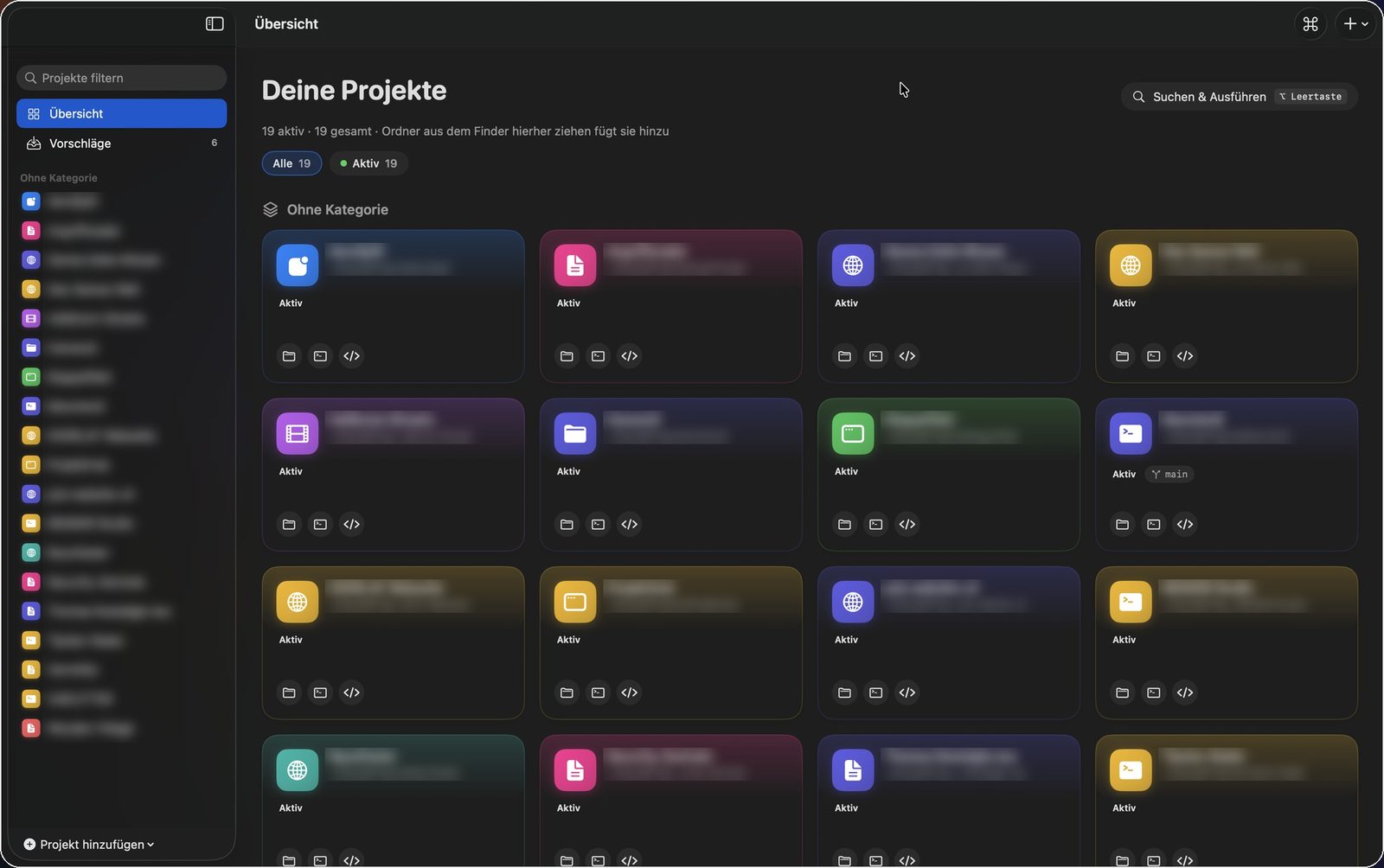
ProjektHub shows your projects as tiles. One click opens the folder, Terminal or your editor, a second one starts your deploy. Uploading via FTP or SFTP is built in.
€24 one-time · final price
No subscription · 12 months of updates included · 30-day money-back
ProjektHub
How ProjektHub works
ProjektHub
What changes for you
Start faster
Finder, Terminal and editor are attached to every tile. No more clicking through folder trees.
Commands without typos
Save deploy, build or test commands once. After that one click is enough, in Terminal or with a live log inside ProjektHub. If you like, the app asks before it runs.
Keyboard all the way
Quick search with ⌥ Space finds project and action by the first letters of each word. A few keystrokes and Terminal opens in the right folder.
Upload without hunting
ProjektHub knows which files changed since the last upload and offers only those. Afterwards it downloads every file again and compares it.
No server accidents
Before every upload ProjektHub saves the files about to be overwritten as a ZIP. If something on the server was changed from outside, it stops and asks you.
Pick up where you left off
Git status, recently changed files, links and notes sit in the detail view. You see at once where you stopped.
This is how easy it is
- Take project folders from the suggestions or drag them from Finder onto the overview.
- Pin commands, links and favourite folders to the project. Scripts it finds, such as deploy.sh or npm scripts, are added with one click.
- From now on: click a tile or press ⌥ Space and get going.
Everything included
- Tiles with status, category, colour, emoji or your own logo
- Quick access to pinned folders, even outside the project
- File tree with Quick Look, drag files straight into other apps
- Finds deploy.sh, .command files, npm scripts and Vercel in the project folder
- Git status on the tile, a dot for uncommitted changes
- System-wide quick search with ⌥ Space, ⌘K inside the app
- FTP, FTPS and SFTP, credentials can come from FileZilla, password in the keychain
- ZIP backup before and verification after every upload
- Block list for files that must never reach the server
- Favourites in the menu bar icon, ProjektHub keeps running there
ProjektHub
All features at a glance
Everything ProjektHub can do, sorted by topic.
Collecting projects
- Suggestions from typical project folders such as
~/Projects,~/Developeror~/Code - Add or remove further sources such as an iCloud folder, the projects in the hub stay put
- Tick several suggestions and add or hide them in one go, show hidden ones again later
⌘Nbrings in a single folder from anywhere,⇧⌘Ncreates an empty project- Drag folders from Finder onto the overview, each one becomes its own project
- Detects the kind of project, for example Apple app, Flutter app, website, Vercel or Python, and picks a fitting icon
- If a project folder goes missing, the tile shows a warning and Edit lets you pick the new location
- Removing a project only deletes the entry, never a file
Overview and tiles
- Favourites sit at the top, every other project is grouped by category, the archive has its own section
- Status per project: active, maintenance, paused, idea or archive
- The filter field searches name, category, path, notes and status
- Right-click a tile for Finder, Terminal, editor, run command, status, favourite and copy path
- Drop a folder onto a tile to pin it as quick access
⌘1overview,⌘2suggestions,⌘3uploads
Detail view
- Pinned folders as chips: open in Finder, Terminal or editor, copy the path, unpin
- File tree with a switch for hidden files, reload, and Terminal opened right inside a subfolder
- A list of the most recently changed files in the project
- Links with a title, copy them with a right-click, the link to the Git repository is added for you
- Git: branch, number of changes or clean, commits to push and to pull, last commit with its age
- A button opens Terminal with git status and the last eight commits
- Write notes straight into the detail view
- Edit name, folder, status, category from existing ones, favourite, colour, SF Symbol, emoji or a logo image
Commands
- Your own commands with a title and a command line, always run in the project folder
- Either in a Terminal window or inside ProjektHub with a live log you can copy and stop
- Finds
.commandfiles plus.shand.pyfiles named deploy, build, start, backup and the like - If the project has a
.venv, a detected Python script runs with its Python - Up to eight npm scripts from
package.json, andvercel --prodfor Vercel projects - When you pin a script, the confirmation prompt is switched on by itself for deploy, release, upload, publish or sync
- Choose your editor: Visual Studio Code, Cursor, Zed, Xcode, Sublime Text, Nova, BBEdit, TextEdit or any other app
- Choose your terminal: Terminal, iTerm, Warp or Ghostty
Quick search and menu bar
- Pick the global shortcut: ⌥ Space, ⌃ Space, ⌥⌘ P, ⇧⌘ Space or off
- Finds projects, Finder, Terminal, editor, pinned folders, links, saved commands and detected scripts
- Combine word beginnings, for example project and action in one entry
- Archived projects drop lower in the results
- Arrow keys to choose,
↩to run,Escto close - Menu bar icon with every favourite and its folders, links and commands, even with the window closed
- Launches at login if you want
- The configuration is a JSON file,
⌘Rreloads it after you edit it by hand
Setting up uploads
- As many upload targets per project as you need, the Uploads page lists them all with counters
- FTP with TLS when available, explicit FTP over TLS, implicit FTPS, plain FTP and SFTP
- Take over a FileZilla entry with server, user, password or SSH key
- If FileZilla protects the password with a master password, you type it in once yourself
- Open the entry in FileZilla with one click
- The local upload folder is often found automatically, Test connection checks the login
- Trust the server on purpose when its certificate throws an error
- Run a command first, for example to build a package, before the file list appears
- Block list with
*and?, a leading./blocks exactly one path,.DS_Store,.git/andnode_modules/are always skipped
Uploading and syncing
- Changes are detected by content (SHA-256), not by time stamp or size
- Sync with the server either exactly, byte by byte, or quickly by size only
- Files found only on the server are listed and never deleted, files deleted locally are yours to decide
- Server files changed from outside: upload only the others, overwrite anyway, fetch the server copy or never upload
- Progress and result for every file, retry only the ones that failed
- Cancel at any time, or close the window and let the run continue in the background
- Quitting during an upload asks first, unconfirmed files stay marked for next time
- If the server allows only a few connections, ProjektHub drops to fewer on its own
- Stalled transfers are cut off, with SFTP a keep-alive spots dead connections
- File names with umlauts never end up twice on the server
Backup and checks
- The ZIP lands in
Server-Sicherungeninside the project and holds a list for restoring - Scope per target: only the files that get overwritten, or the whole target folder,
.htaccessincluded - The ZIP is verified, and without a valid backup no upload starts unless you choose so on purpose
- Before backing up, ProjektHub checks that the drive has enough free space
- The last ten backups per target are kept, older ones move to the Bin
- Live check: up to twelve static files are fetched through the real website and compared
- Green when live, red for different content, orange for a 404, problems also arrive as notifications
- The live address is derived from the domain name,
-turns the check off
Permissions and clearing the server
- Permission rules such as
inc/secret.phpto600, one level up with..or as an absolute path - Read permissions to compare target and actual, set them now and read them back to confirm
- Optionally reapply the permissions after every upload
- Suggestions for
config.php,wp-config.php,.envand similar files from the upload folder - Quick picks for 600, 640, 644, 700, 750 and 755
- Clear the server and upload everything again (FTP and FTPS), always after a complete ZIP backup
- Data folders, databases and
.htaccessare preselected to keep, and can be blocked for good - You type the name of the target to start, the root folder of the account is never cleared
Working with Claude
- A
.projekthub-upload.jsonjob in the upload folder is picked up and announced by notification - Import a Markdown checklist with
⇧⌘Uor drop it on the Uploads page - The released files are preselected in the upload window
- After the upload ProjektHub writes the result for each file back into the job
- Each target can upload released files automatically, and you can discard a job too
- Claude never sees credentials and never uploads anything itself
System requirements
Does it run on your Mac?
- macOS
- 14 Sonoma or later
- Processor
- Apple Silicon and IntelUniversal app
- Notes
- Anything else you need is listed in the overview. All details and all apps compared ›
ProjektHub
ProjektHub is yours. Forever.
€24one-time · final price
€24 one-time · final price
No subscription · 12 months of updates included · 30-day money-back
Sales start soon. Sign up and you will be the first to know.
After that, optional: each further year of updates for 50 % of the price. The app keeps working without it.
Even better value: all 6 apps
ProjektHub is part of the complete bundle. All 6 apps for €59 instead of €149.
See the bundleQuestions about ProjektHub
Does ProjektHub delete files when I remove a project?
No, removing only takes the entry out of the hub. Your folders and files stay untouched.
Do I have to reorganise my folders?
No, ProjektHub only remembers where your projects live. Typical folders such as Projects, Developer or Code are found on first launch. You can add more sources, for example an iCloud folder.
Do I need FileZilla to upload?
No, but it helps. With FileZilla, ProjektHub takes server, user and password from the matching entry. Without it you enter the details yourself, and the password is kept in the macOS keychain.
What if someone changed a file on the server?
Before uploading, ProjektHub compares the server files with the last verified state. If one differs, nothing is uploaded. You decide: upload only the others, keep the server version or overwrite on purpose.
Do commands run in Terminal or in the app?
Both work, you choose per command. A Terminal window handles scripts that ask questions. Inside ProjektHub you watch the output live in the log.
Does ProjektHub go online?
Only when uploading, and only to the servers you enter yourself. Everything else is kept in a file on your Mac that you may even edit by hand.
Coming soon
Be there when ProjektHub launches.
Sales start soon. Enter your email and you will be the first to know. One email at launch, nothing else.