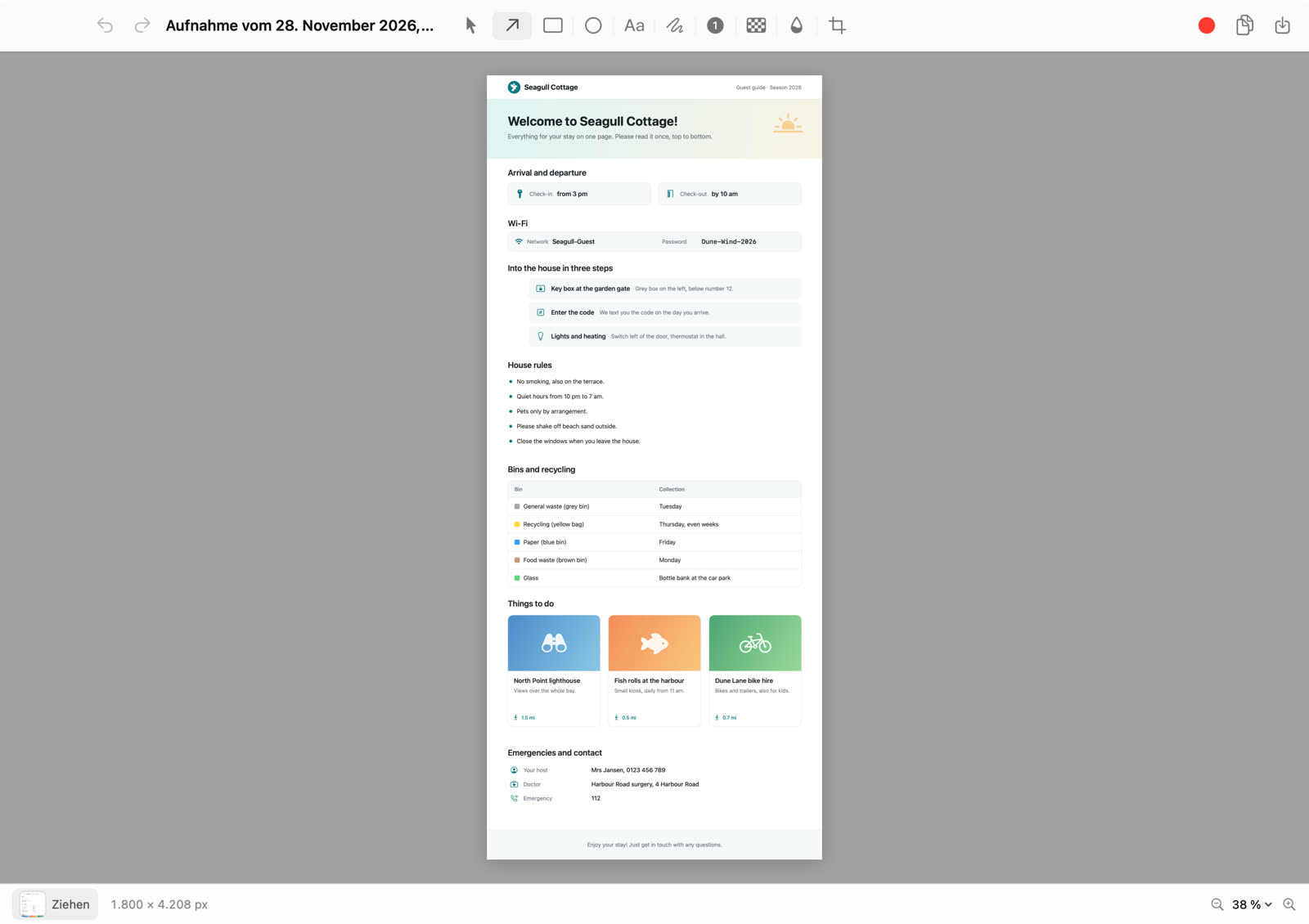
The whole page in one image. Shot Hub does the scrolling.
Shot Hub captures long web pages, chats and spreadsheets in one piece: the app scrolls on its own and joins the parts into one tall image. Then you mark what matters in the editor, pixelate anything private and pass the image on.
€19 one-time · final price
No subscription · 12 months of updates included · 30-day money-back

Shot Hub
How Shot Hub works
Shot Hub
What changes for you
Everything in one continuous image
A long guide, a whole chat history, a spreadsheet down to the last row: Shot Hub turns it into one image. Fixed headers and footers show up only once.
Clear at a glance
Arrows, boxes and numbered markers turn a screenshot into a set of instructions. Whoever looks at it sees straight away where to click.
Private details stay out
Pixelate names, email addresses or customer numbers before anyone sees the image. The saved image has no layers with the original still hiding underneath.
Ready to paste
Right after the capture the image is already on the clipboard. Paste it into a ticket, an email or a chat, or drag it from the editor into any app.
Your images stay with you
Shot Hub has no networking code, no account and no analytics. A screenshot only leaves your Mac when you share it yourself.
Always at hand, never in the way
Shot Hub waits in the menu bar and listens for its shortcuts in every app. The screenshots built into macOS keep working alongside it as usual.
This is how easy it is
- Press ⌃⌥⌘4 or pick the scrolling capture from the menu bar icon.
- Drag a frame around the scrolling content or click the window. Shot Hub scrolls and joins the image.
- Mark and pixelate in the editor, then copy, save or drag the image into another app.
Everything included
- Scrolling capture for windows and areas
- Area, window and full screen
- Global shortcuts ⌃⌥⌘1 to ⌃⌥⌘4
- Arrow, box, circle, text, freehand and markers
- Pixelate and blur
- Crop with rule-of-thirds lines
- Copy, save as PNG or JPEG, drag
- Sits in the menu bar
- No internet, no account
Shot Hub
All features at a glance
Everything Shot Hub can do, sorted by topic.
Captures
- Area: drag a frame, with the size in pixels shown next to it
- Window: click it, without the shadow and even when half covered
- Full screen: the screen the mouse is on
- The mouse pointer and the selection layer never appear in the image
- Esc or a right click cancels the selection
- Works on top of an app in full screen too
- macOS shutter sound, can be switched off in the settings
Scrolling capture
- Drag a frame around the scrolling part or click a whole window
- With the Accessibility permission Shot Hub scrolls itself, otherwise you scroll by hand
- Fixed headers and footers appear only once in the result
- Scroll bars and fixed sidebars do not throw off the joining
- Red frame around the area, small info panel with the number of images and the height
- Stops by itself at the end of the page, or you finish it with a click
- Result up to 60,000 pixels tall
- The mouse pointer jumps back to where it was afterwards
- Tells you when you scrolled too fast by hand
Drawing
- Arrow, in 45-degree steps with ⇧
- Box with slightly rounded corners and circle, with ⇧ as a square or a true circle
- Place text with a click, change it later with a double click
- Freehand with a smoothed line
- Round numbered markers, the next number counts up by itself
- Eight fixed colours plus a free colour picker
- Line width from 1 to 16 with a preview
- Your last colour and width carry over to the next capture
- Select, move, recolour and delete drawings
- Every tool on a key: V, A, R, O, T, P, N, X, B and C
Pixelate, blur, crop
- Pixelate or blur as a rectangle, as a square with ⇧
- Crop with a dimmed border and rule-of-thirds lines
- Return crops, Esc cancels
- Before cropping, all pixelation is burned into the image so nothing reappears at the new edge
The editor
- A window of its own for each capture, several open at once
- Undo and redo for up to 60 steps
- Zoom with ⌘+ and ⌘-, actual size with ⌘0, fit with ⌘9
- Very tall images fit the window width and scroll vertically
- Full screen mode with ⌃⌘F
- Light or dark, following your macOS setting
- Asks before closing if a change has not been saved yet
- Open existing images, also via Open With in Finder (PNG, JPEG, TIFF, HEIC)
Passing it on
- ⌘C puts the finished image with all drawings on the clipboard, as PNG and TIFF
- ⌘S saves to the capture folder, ⇧⌘S to a place of your choice
- PNG without loss or JPEG for small files
- File name with date and time, never overwritten
- Retina captures at 144 dpi, so the size is right everywhere
- Drag field at the bottom left: drag the image as a PNG into Finder, Mail or another app
- Show the last saved file in Finder with ⇧⌘R
Settings and shortcuts
- Global shortcuts ⌃⌥⌘1 to 4, or ⌥⌘1 to 4, or off entirely
- A notice when another app already uses a shortcut
- After a capture: open the editor, copy, save automatically, sound, each on or off
- Capture folder of your choice, Pictures/Shot Hub by default
- Launch at login if you like
- A help window shows which permission is missing and opens the right place
Privacy
- No networking code, no account, no telemetry
- No third-party components, only Apple technology from macOS
- The shortcuts work without the Accessibility permission
- No Dock icon while no Shot Hub window is open
System requirements
Does it run on your Mac?
- macOS
- 14 Sonoma or later
- Processor
- Apple SiliconM1 or later, no Intel
- Notes
- Anything else you need is listed in the overview. All details and all apps compared ›
Shot Hub
Shot Hub is yours. Forever.
€19one-time · final price
€19 one-time · final price
No subscription · 12 months of updates included · 30-day money-back
Sales start soon. Sign up and you will be the first to know.
After that, optional: each further year of updates for 50 % of the price. The app keeps working without it.
Even better value: all 8 apps
Shot Hub is part of the complete bundle. All 8 apps for €59 instead of €197.
See the bundleQuestions about Shot Hub
Why does Shot Hub ask for permissions?
macOS protects your screen. That is why Apple requires every app that takes screenshots to have the Screen & System Audio Recording permission (on macOS 14 it is called Screen Recording). Without it, Shot Hub cannot capture anything. Despite the name, Shot Hub never records sound. The second permission, Accessibility, is only needed so Shot Hub can scroll by itself during a scrolling capture. Without it you scroll by hand, and the app still joins the images. Both switches are in System Settings > Privacy & Security, and a window in Shot Hub takes you straight there.
How well does the scrolling capture work?
Shot Hub compares each new image with the previous one and only adds the new rows. It detects fixed bars at the top and bottom by itself, and scroll bars or fixed sidebars do not get in the way. Moving content such as videos, animations or ads is tricky, as are pages that rearrange themselves while you scroll. In that case, draw the frame only around the part that scrolls. Scrolling runs from top to bottom.
How tall can an image get?
Up to 60,000 pixels. The automatic capture stops by itself once the page no longer moves. You can also finish with a click at any time, or cancel and throw everything away.
Will the shortcuts clash with my other apps?
The default is ⌃⌥⌘ with the digits 1 to 4, a combination that is rarely taken. The macOS screenshots on ⇧⌘3, ⇧⌘4 and ⇧⌘5 stay untouched. In the settings you can switch to the shorter ⌥⌘ instead, or turn the shortcuts off. If one is already taken, Shot Hub tells you.
Where do my images go, and in which format?
Into the Pictures/Shot Hub folder, with the date and time in the name. You can change the folder. Images are saved as PNG or JPEG, and Shot Hub never overwrites a file but adds a number instead. Captures from Retina screens get 144 dpi, so they appear at the right size in other apps.
Can I edit images I already have?
Yes. Open an image from the menu bar icon or in Finder with Open With > Shot Hub, for example PNG, JPEG, TIFF or HEIC. You then get the same tools as after a capture.
Will Shot Hub run on my Mac?
You need macOS 14 Sonoma or later and a Mac with Apple silicon, M1 or newer. Macs with an Intel processor are not supported. The full list is on the system requirements page.
Does Shot Hub send anything over the internet?
No. The app contains no networking code and no third-party components, it only uses Apple technology built into macOS. There is no account and no usage tracking. An image only goes out when you paste or send it yourself.
Coming soon
Be there when Shot Hub launches.
Sales start soon. Enter your email and you will be the first to know. One email at launch, nothing else.